Deploy WAHA on Docker
January 10, 2026 in Install by devlikeapro8 minutes

Overview
In this guide we’ll show you how to deploy WAHA using Docker and Docker Compose.
Why Docker?
Docker makes it easy to ship all-in-one solution with the runtime and dependencies. You don’t have to worry about language-specific libraries or chrome installation.
Also, Docker makes installation and update processes so simple, just one command!
Why Docker Compose?
Docker Compose is a tool for defining and running Docker applications. With Compose, you use a YAML file to configure your application’s services. Then, with a single command, you create and start all the services from your configuration.Requirements
- Clean Ubuntu or any Linux-based OS
- Minimum 2 CPU and 2 GB RAM
- Public IP address assigned to the server
- No DNS required up front because EasyPanel provides built-in DNS.
If you want to host more sessions - please check the numbers in FAQ.
Linux
👉 We suggest using Debian or Ubuntu based distributions.Windows
👉 For Windows we kindly suggest using Hyper-V backend for Docker Desktop!
It might not work with WSL2 backend properly.
MacOS
👉 For MacOS use Docker Desktop!
👉 If you use Apple M1/M2/etc - go to Docker Image Configurator and choose CPU - ARM to get the right image to use.
Looking for Hosting?
We’ve been using the.hosting for quite a while and had a great experience.
They offer a wide range of server configurations and locations - highly recommended! 👍
Install
Docker
- Install Docker and Docker Compose on your VM
# example in ubuntu
apt-get update
apt-get upgrade
curl -fsSL https://get.docker.com -o get-docker.sh
sudo sh get-docker.sh
apt install docker-compose-plugin
Pull Image
Pull image for your case:
WAHA
- Download the required files
# Download the Docker compose template
wget -O docker-compose.yaml https://raw.githubusercontent.com/devlikeapro/waha/refs/heads/core/docker-compose.yaml
# Create empty .env file
touch .env- Pick the image in
docker-compose.yamlbefore runninginit-waha:
- Generate a
.envfile that we’ll use in the next step for credentials:
docker compose run --no-deps -v "$(pwd)":/app/env waha init-waha /app/envCredentials generated.
Dashboard and Swagger:
- Username: admin
- Password: 11111111111111111111111111111111
API key:
- 00000000000000000000000000000000
Use it in the Dashboard connection flow: https://waha.devlike.pro/docs/how-to/dashboard/#api-keyRemember these values (you can always check the .env file if you forget them):
- Username / Password:
admin / 11...11- use them to access the Dashboard and Swagger UI - Api Key:
00...00- use it to connect to your server
👉 You can change variables to any values, but use long random strings (like UUIDv4)
- Tweak the
.envanddocker-compose.yamlaccording to your preferences. Refer to the available environment variables in ⚙️ Configuration.
# update docker-compose.yaml if required
# set "image: devlikeapro/waha" if you don't have waha-plus access
nano docker-compose.yaml
Do Not Use Weak API Keys or Passwords!
Even if you’re running WAHA on a private server and think the IP is unknown - it’s straightforward for attackers to find and exploit it to send spam or abuse your WhatsApp sessions.
Always set strong, random values (see a guide below) for:
WAHA_API_KEYWAHA_DASHBOARD_PASSWORDWHATSAPP_SWAGGER_PASSWORD- you can the same as forWAHA_DASHBOARD_PASSWORD
uuidgen | tr -d '-'
> 2e1005a40ef74edda01ffb1ade877fd3- Get the service up and running.
docker compose up -d- Your WAHA installation is complete. Please note that the containers are not exposed to the internet, and they only bind to the localhost. Set up something like Nginx or any other proxy server to proxy the requests to the container.
How to export port from remote server?
If you’re using a remote server (like VPS or Virtual Machine on your laptop) you need to allow access for your browser. Use one of the options available.
- SSH tunneling
If you’re connecting to ssh, you can forward port 3000 on your laptop like
ssh -L 3000:localhost:3000 user@you.address.here- Bind port to all ips
For temporary external access, you can change the port binding from 127.0.0.1:3000:3000 to 3000:3000 in the docker-compose.yaml file.
services:
  waha:
    image: devlikeapro/waha-plus
    ports:
      - "3000:3000"
docker compose up -dThis makes your instance accessible at http://<your-external-ip>:3000.
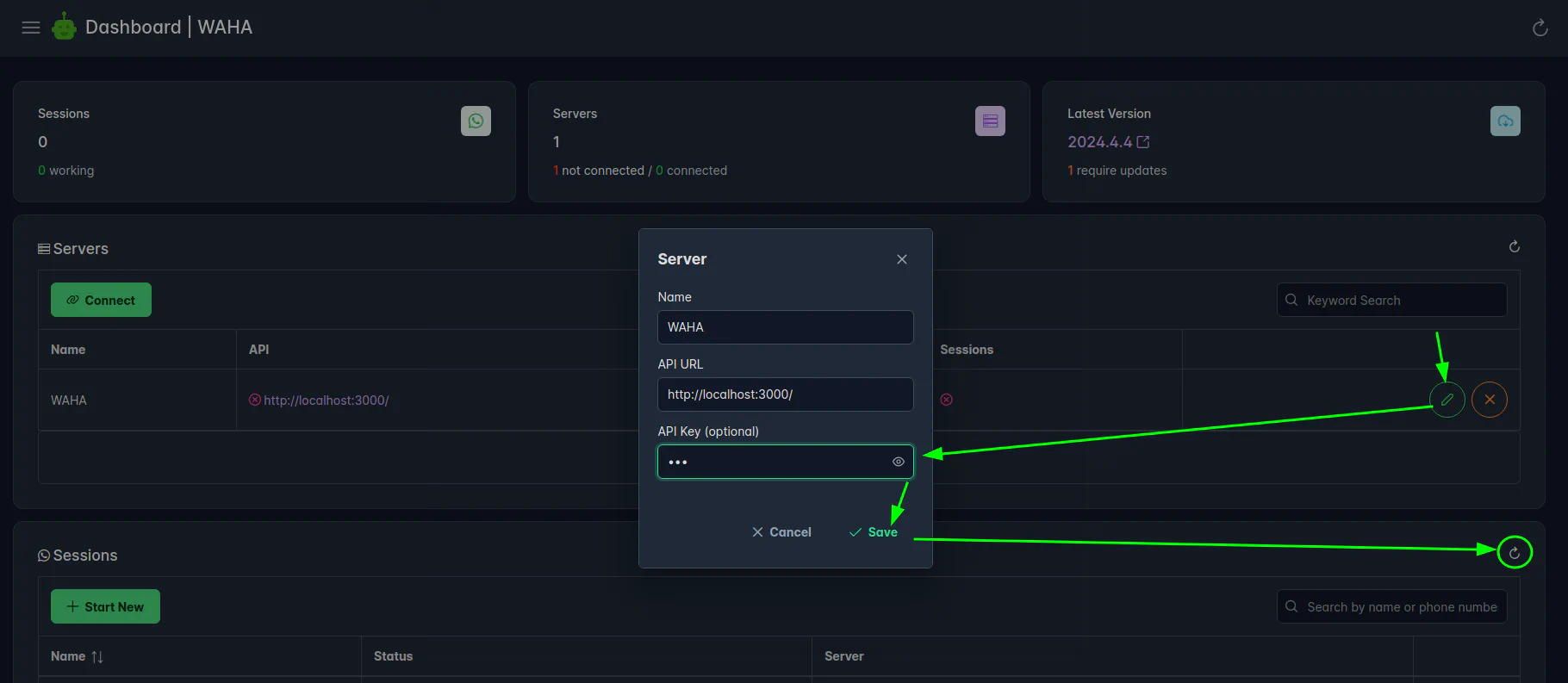
- Now, open http://localhost:3000/dashboard and log in with the credentials you have in
.envfile:
- Dashboard -
WAHA_DASHBOARD_USERNAME / WAHA_DASHBOARD_PASSWORD - Swagger:
WHATSAPP_SWAGGER_USERNAME / WHATSAPP_SWAGGER_PASSWORD - Api Key:
WAHA_API_KEY
Nginx
👉 Replace <YOUR_DOMAIN_OR_IP> with your domain name in the following steps (use lowercase).
- Configure Nginx to serve as a frontend proxy.
sudo apt-get install nginx
cd /etc/nginx/sites-enabled

nano <YOUR_DOMAIN_OR_IP>.conf- Use the following Nginx config and replace the
<YOUR_DOMAIN_OR_IP>inserver_name.
server {
  server_name <YOUR_DOMAIN_OR_IP>;

  # Point upstream to WAHA Server
  set $upstream 127.0.0.1:3000;

  location /.well-known {
    alias /var/www/ssl-proof/waha/.well-known;
  }

  location / {
    proxy_pass_header Authorization;
    proxy_pass http://$upstream;
    proxy_set_header Upgrade $http_upgrade;
    proxy_set_header Connection "Upgrade";
    proxy_set_header Host $host;
    proxy_set_header X-Forwarded-Proto $scheme;
    proxy_set_header X-Forwarded-Ssl on; # Optional

    proxy_set_header X-Real-IP $remote_addr;
    proxy_set_header X-Forwarded-For $proxy_add_x_forwarded_for;

    proxy_http_version 1.1;
    proxy_buffering off;

    client_max_body_size 0;
    proxy_read_timeout 36000s;
    proxy_redirect off;
  }
  listen 80;
}- Verify and reload your Nginx config by running the following command.
nginx -t
systemctl reload nginx
Here are two scenarios for setting up HTTPS:
HTTPS - Let’s Encrypt
If you have a domain name (e.g., yourdomain.com) that points to your server’s IP address, you can use Let’s Encrypt to get free, trusted SSL certificates:
- Run Let’s Encrypt to configure SSL certificate. (replace <YOURDOMAIN.COM>!)
apt install certbot
apt-get install python3-certbot-nginx

mkdir -p /var/www/ssl-proof/waha/.well-known
certbot --webroot -w /var/www/ssl-proof/waha/ -d <YOURDOMAIN.COM> -i nginx- Your WAHA installation should be accessible from the https://yourdomain.com now.
- Change
WAHA_BASE_URL=https://<YOURDOMAIN.COM>in the.envfile and restart the WAHA service
# Change the WAHA_BASE_URL in .env
nano .env
# Restart the WAHA service
docker compose up -d
docker compose restart
HTTPS - Self-Signed Certificate
We recommend using Let’s Encrypt free certificate if you have public IP and DNS name.
However, if you don’t have a domain name or are using a private IP address, you can create a self-signed certificate for IP-based access, expand the details below:
HTTPS - Setup Self-Signed Certificate
- Create a directory for your SSL certificates:
mkdir -p /etc/nginx/ssl
cd /etc/nginx/ssl- Create a configuration file for the self-signed certificate:
cat > ip-cert.cnf << 'EOL'
[req]
default_bits = 2048
prompt = no
default_md = sha256
distinguished_name = dn
x509_extensions = v3_ca

[dn]
C=US
ST=State
L=City
O=Organization
OU=Department
CN=<YOUR_IP_ADDRESS>

[v3_ca]
subjectAltName = @alt_names

[alt_names]
IP.1 = <YOUR_IP_ADDRESS>
EOL- Generate a self-signed certificate valid for 10 years (3650 days):
openssl req -x509 -nodes -days 3650 -newkey rsa:2048 -keyout ip-cert.key -out ip-cert.crt -config ip-cert.cnf- Update your Nginx configuration to use the self-signed certificate:
cd /etc/nginx/sites-enabled
nano <YOUR_DOMAIN_OR_IP>.conf- Modify your Nginx configuration to include SSL settings:
server {
    listen 80;
    server_name <YOUR_IP_ADDRESS>;
    return 301 https://$host$request_uri;
}

server {
    listen 443 ssl;
    server_name <YOUR_IP_ADDRESS>;

    ssl_certificate /etc/nginx/ssl/ip-cert.crt;
    ssl_certificate_key /etc/nginx/ssl/ip-cert.key;
    ssl_protocols TLSv1.2 TLSv1.3;
    ssl_prefer_server_ciphers on;

    # Point upstream to WAHA Server
    set $upstream 127.0.0.1:3000;

    location / {
        proxy_pass_header Authorization;
        proxy_pass http://$upstream;
        proxy_set_header Upgrade $http_upgrade;
        proxy_set_header Connection "Upgrade";
        proxy_set_header Host $host;
        proxy_set_header X-Forwarded-Proto $scheme;
        proxy_set_header X-Forwarded-Ssl on; # Optional

        proxy_set_header X-Real-IP $remote_addr;
        proxy_set_header X-Forwarded-For $proxy_add_x_forwarded_for;

        proxy_http_version 1.1;
        proxy_buffering off;

        client_max_body_size 0;
        proxy_read_timeout 36000s;
        proxy_redirect off;
    }
}- Verify and reload your Nginx config:
nginx -t
systemctl reload nginx- Update your WAHA configuration to use HTTPS:
# Change the WAHA_BASE_URL in .env to use https
nano .env
# Add or modify: WAHA_BASE_URL=https://<YOUR_IP_ADDRESS>
# Restart the WAHA service
docker compose up -d
docker compose restart- When accessing your WAHA instance, you’ll need to accept the self-signed certificate warning in your browser.
Update
When there’s a new version of WAHA, you can update it with these simple commands:
➕ WAHA Plus image:
# Login if you're using WAHA Plus
docker login -u devlikeapro -p {KEY}
docker compose pull
docker logout

docker compose up -d
👉 If you specified exact version in docker-compose.yml, like
image: devlikeapro/waha-plus:latest-2024.7.8remember to change it to latest-{YEAR}.{MONTH}.{BUILD} to get the latest version.
WAHA Core image:
docker compose pull
docker compose up -d
Get logs, restart, stop
# Stop all containers
docker compose down
# Start all containers, apply new configuration
docker compose up -d
# Restart all containers
docker compose restart
# Show logs in real time
docker compose logs -f
# Show logs - since interval
docker compose logs --since 1h