Deploy WAHA on EasyPanel
January 12, 2026 in Install by devlikeapro3 minutes

Overview
With WAHA on EasyPanel, you get:
- A public DNS name like
https://myproject-waha.<ID>.easypanel.host/ - Automatic HTTPS handling
- Easy UI for deployments, env vars, and storage
Requirements
- Clean Ubuntu or any Linux-based OS
- Minimum 2 CPU and 2 GB RAM
- Public IP address assigned to the server
- No DNS required up front because EasyPanel provides built-in DNS.
Install
Install EasyPanel
Install EasyPanel on a fresh Linux server:
curl -sSL https://get.easypanel.io | shFinish the web setup in your browser.
Create Project
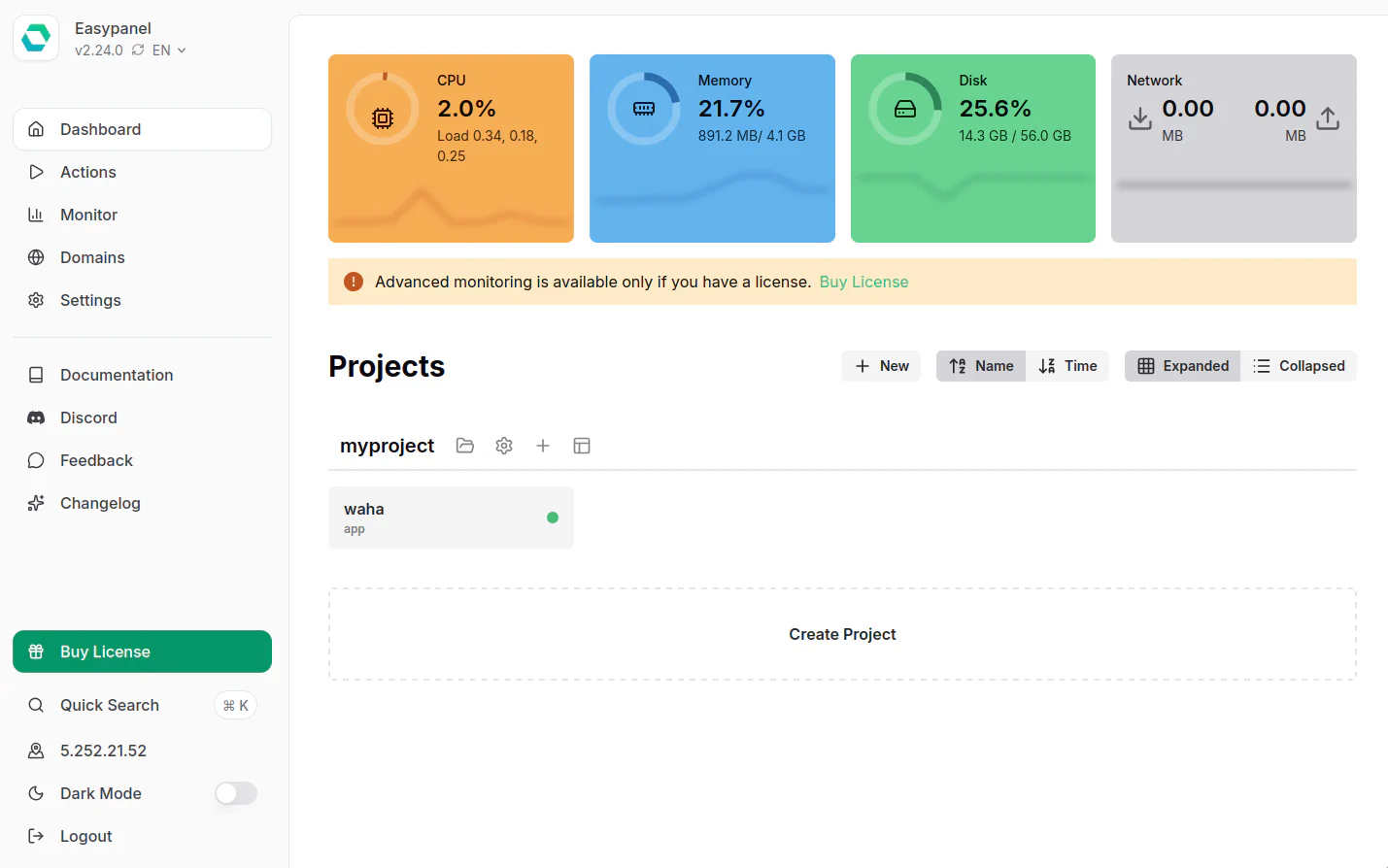
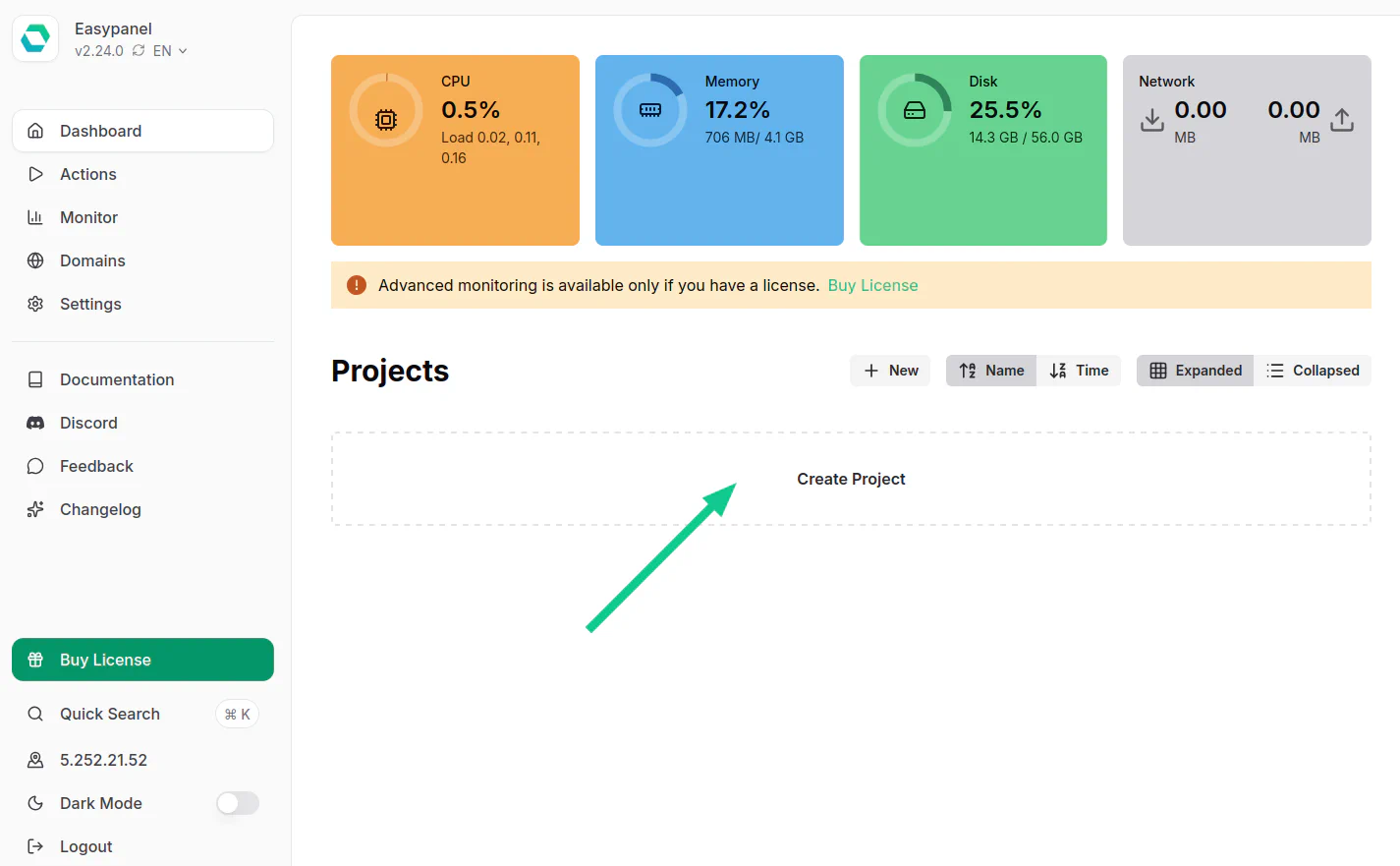
Now, we need to create a project :
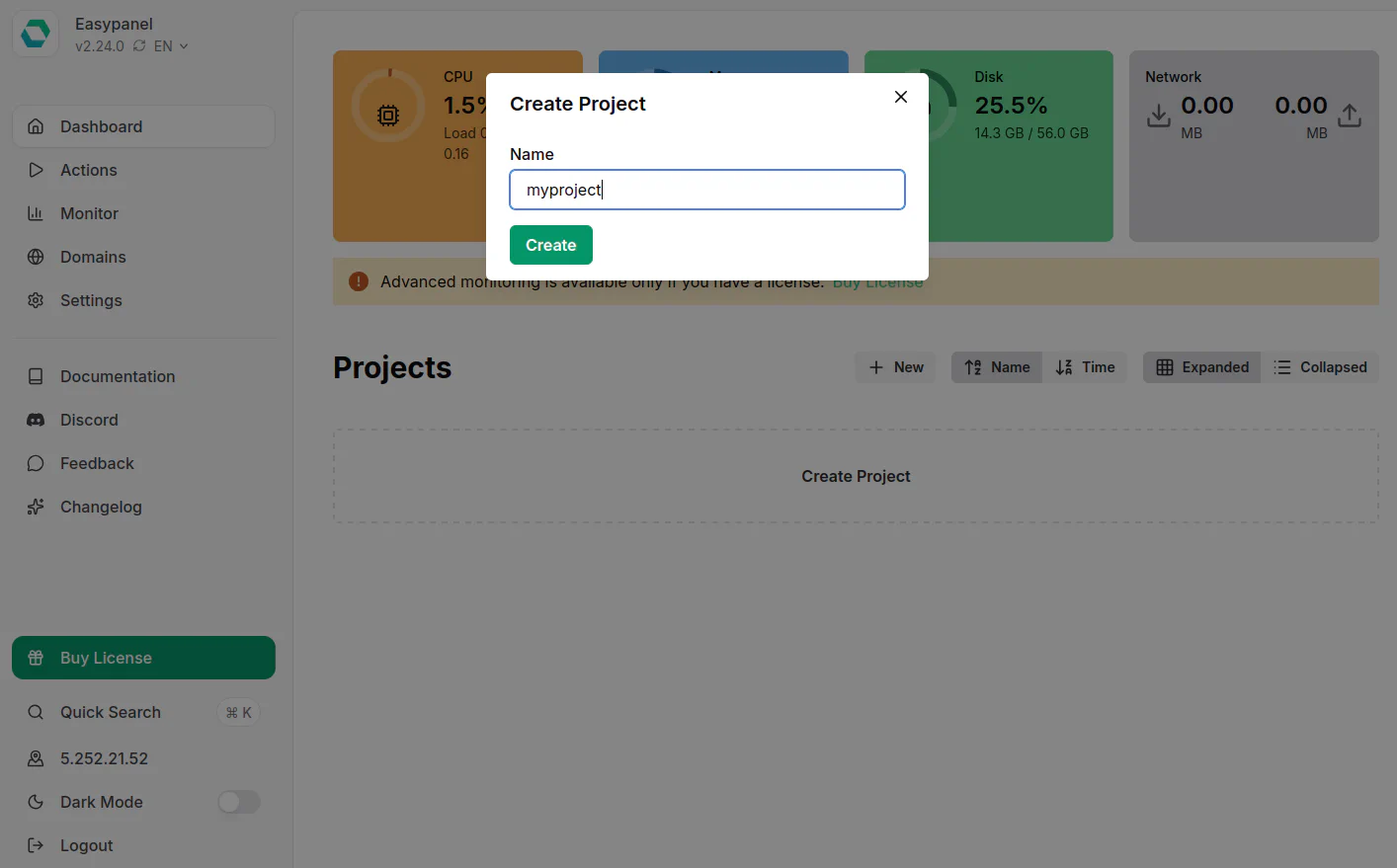
Name it myproject:
Create an App
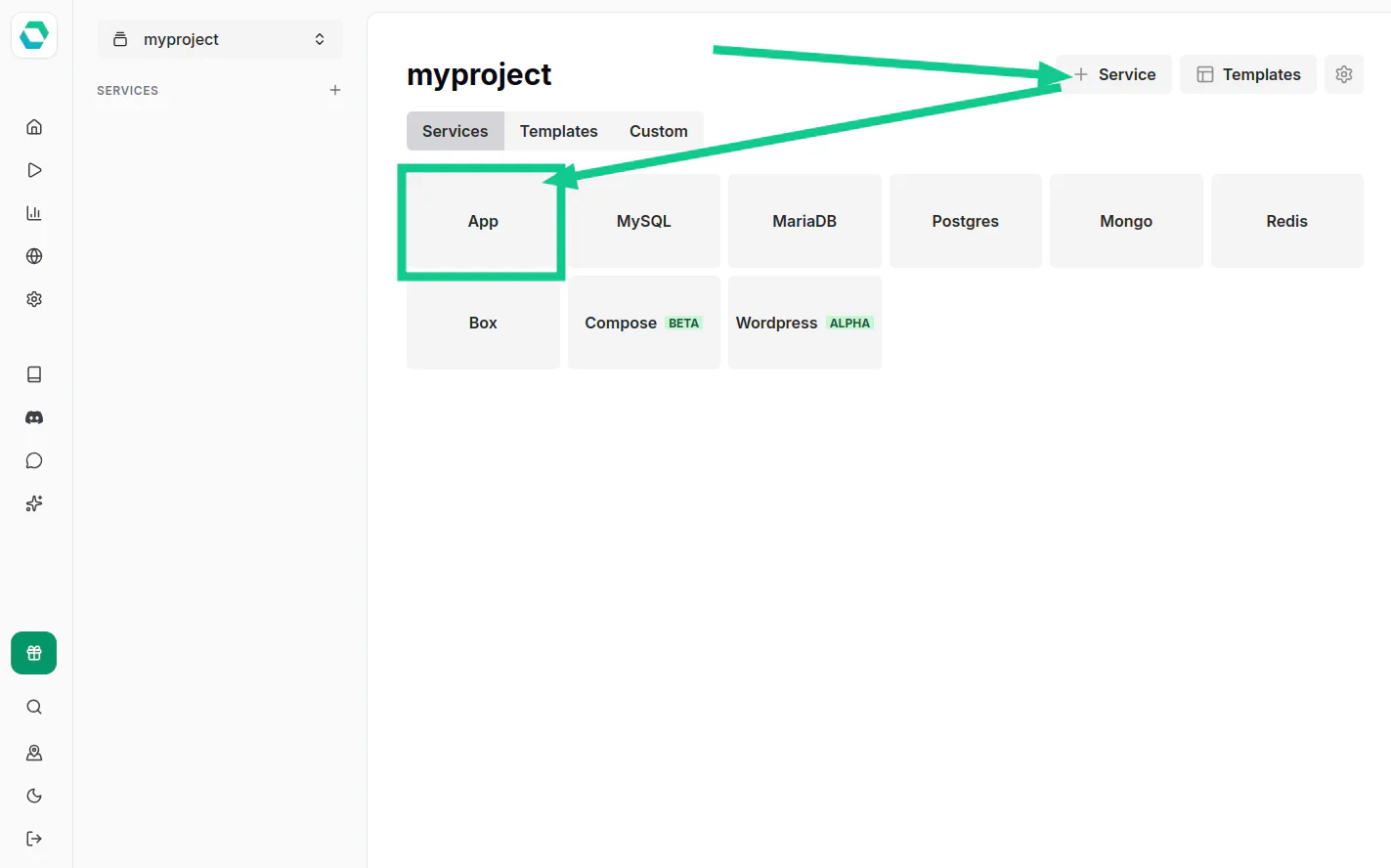
Open myproject, add a new Service, and choose App:
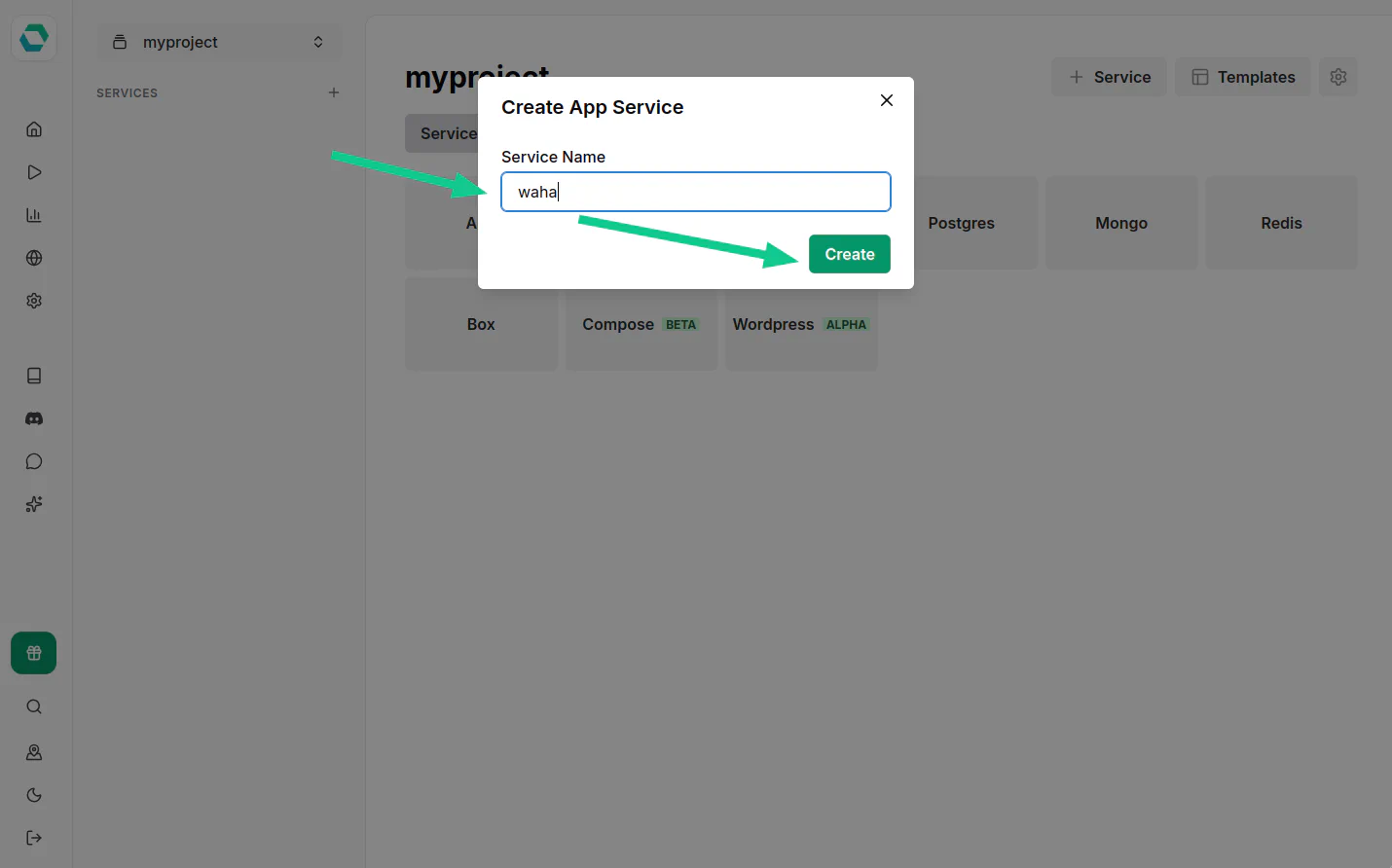
Name it waha:
App - Docker Image
Open the waha service and click Docker Image:
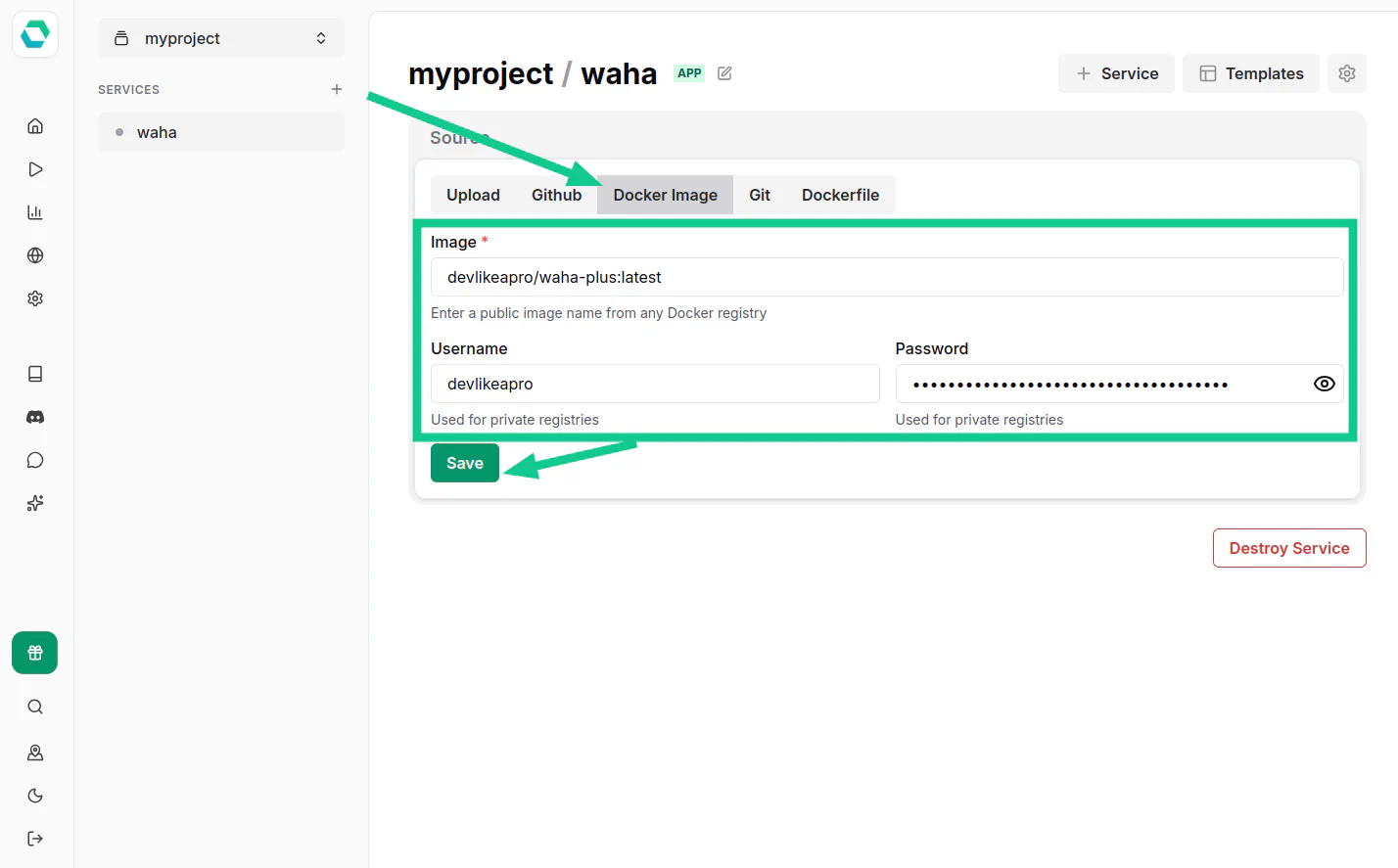
Fill the fields based on the WAHA version you’ll use.
You can change it later in the Source tab for the waha service.
👉 Go to Docker Image Configurator to generate the command with the right version.
App - Environment Variables
Go to Environment and paste the environment variables below.
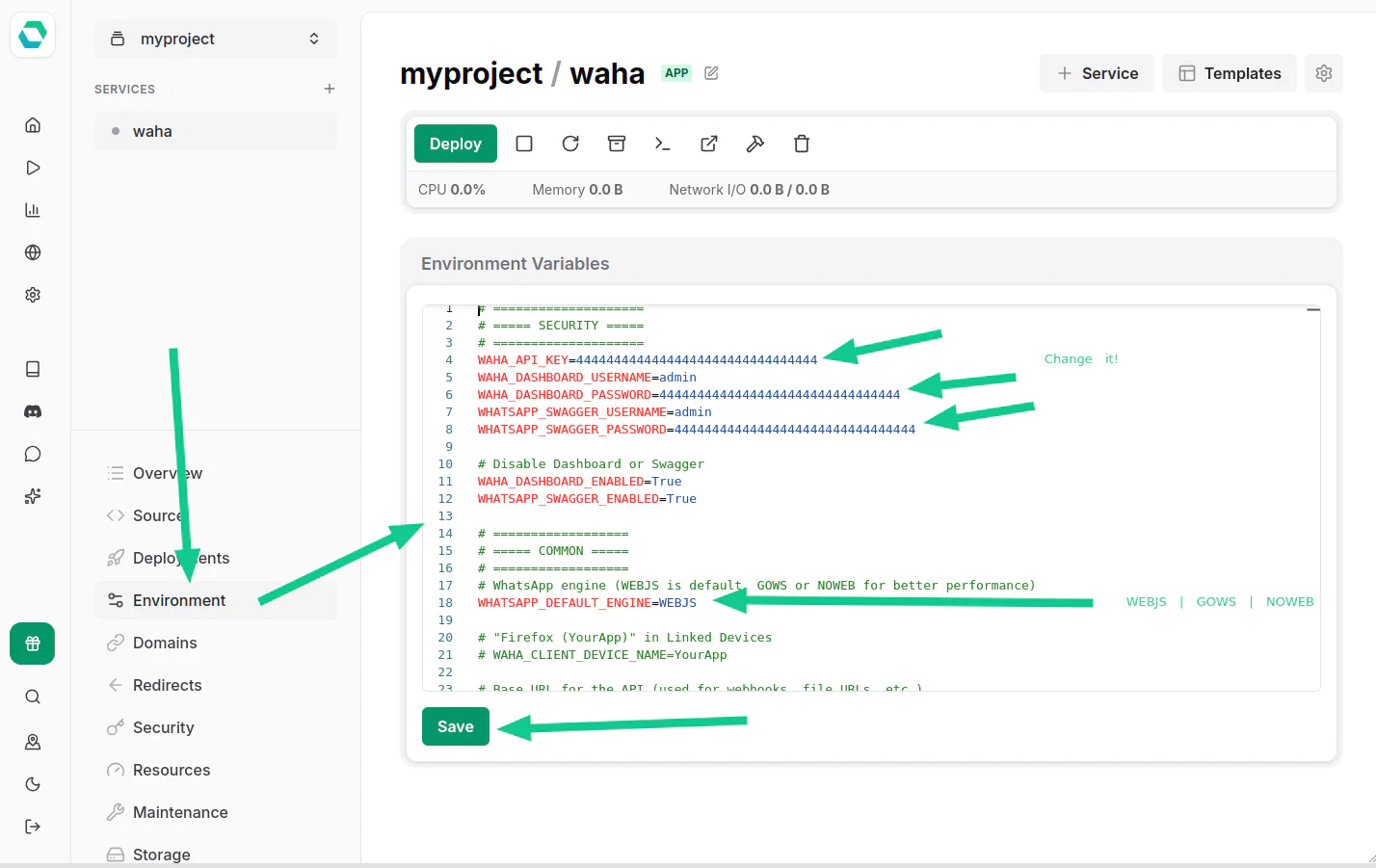
Change Secrets
In the example below, we use 44..44 for some environment variables.
You must generate your own using this command:
uuidgen | tr -d '-'# ====================
# ===== SECURITY =====
# ====================
WAHA_API_KEY=44444444444444444444444444444444
WAHA_DASHBOARD_USERNAME=admin
WAHA_DASHBOARD_PASSWORD=44444444444444444444444444444444
WHATSAPP_SWAGGER_USERNAME=admin
WHATSAPP_SWAGGER_PASSWORD=44444444444444444444444444444444
# Disable Dashboard or Swagger
WAHA_DASHBOARD_ENABLED=True
WHATSAPP_SWAGGER_ENABLED=True
# ==================
# ===== COMMON =====
# ==================
# WhatsApp engine (WEBJS is default, GOWS or NOWEB for better performance)
WHATSAPP_DEFAULT_ENGINE=WEBJS
# Namespace for sessions storage - set to "all" so sessions are shared across
# all engines, allowing you to switch engines without losing the session list
WAHA_NAMESPACE=all
# "Firefox (YourApp)" in Linked Devices
# WAHA_CLIENT_DEVICE_NAME=YourApp
# Base URL for the API (used for webhooks, file URLs, etc.)
WAHA_BASE_URL=https://$(PRIMARY_DOMAIN)
WAHA_PUBLIC_URL=https://$(PRIMARY_DOMAIN)
# ===================
# ===== LOGGING =====
# ===================
# Log format: JSON (for log management systems) or PRETTY (for development)
WAHA_LOG_FORMAT=JSON
# Log level: info, debug, error, warn
WAHA_LOG_LEVEL=info
# Don't print QR codes in logs
WAHA_PRINT_QR=False
# =========================
# ===== MEDIA STORAGE =====
# =========================
# Local storage (default)
WAHA_MEDIA_STORAGE=LOCAL
WHATSAPP_FILES_LIFETIME=0
WHATSAPP_FILES_FOLDER=/app/.mediaApp - Storage
Go to the Storage tab and add a Volume Mount:
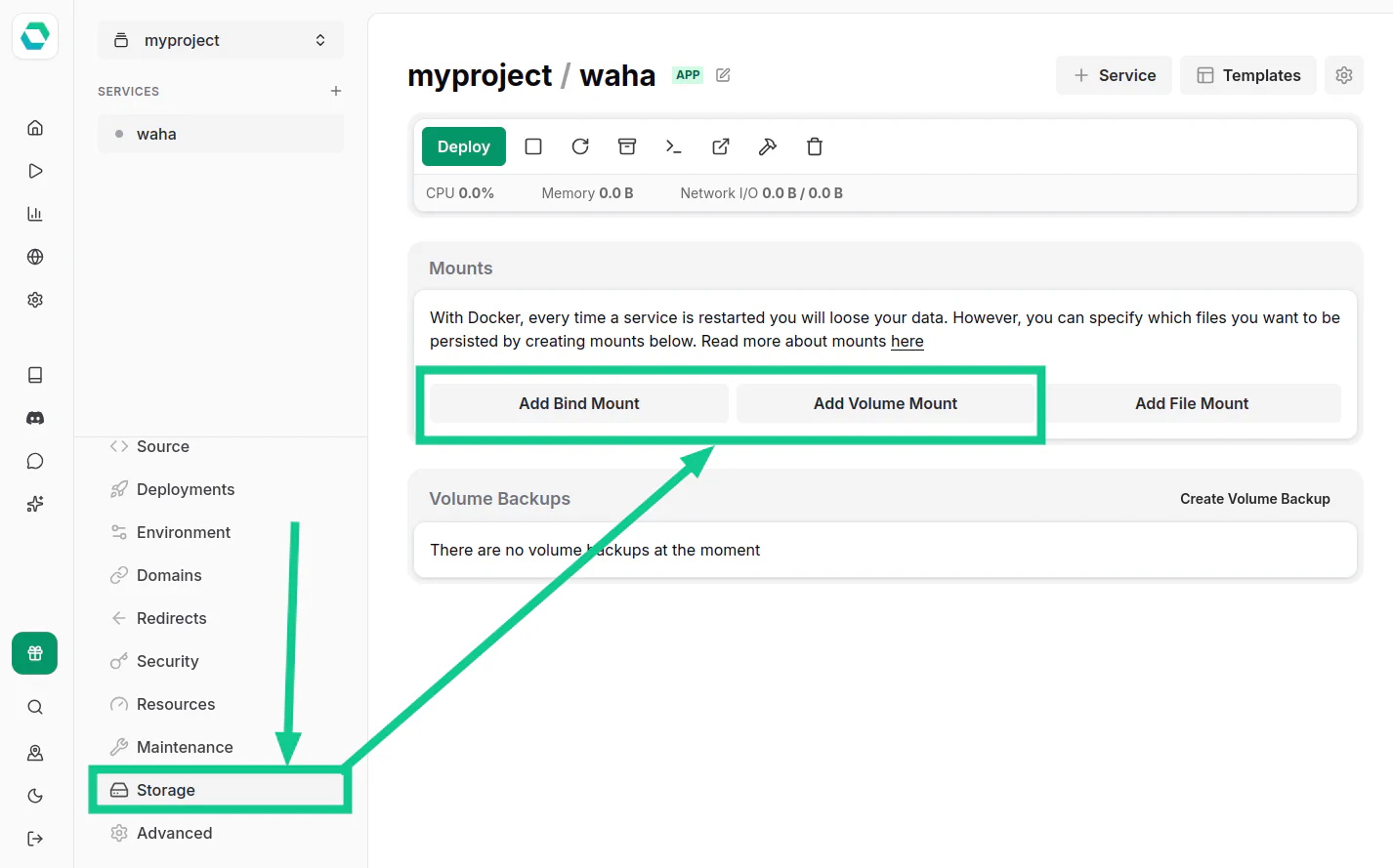
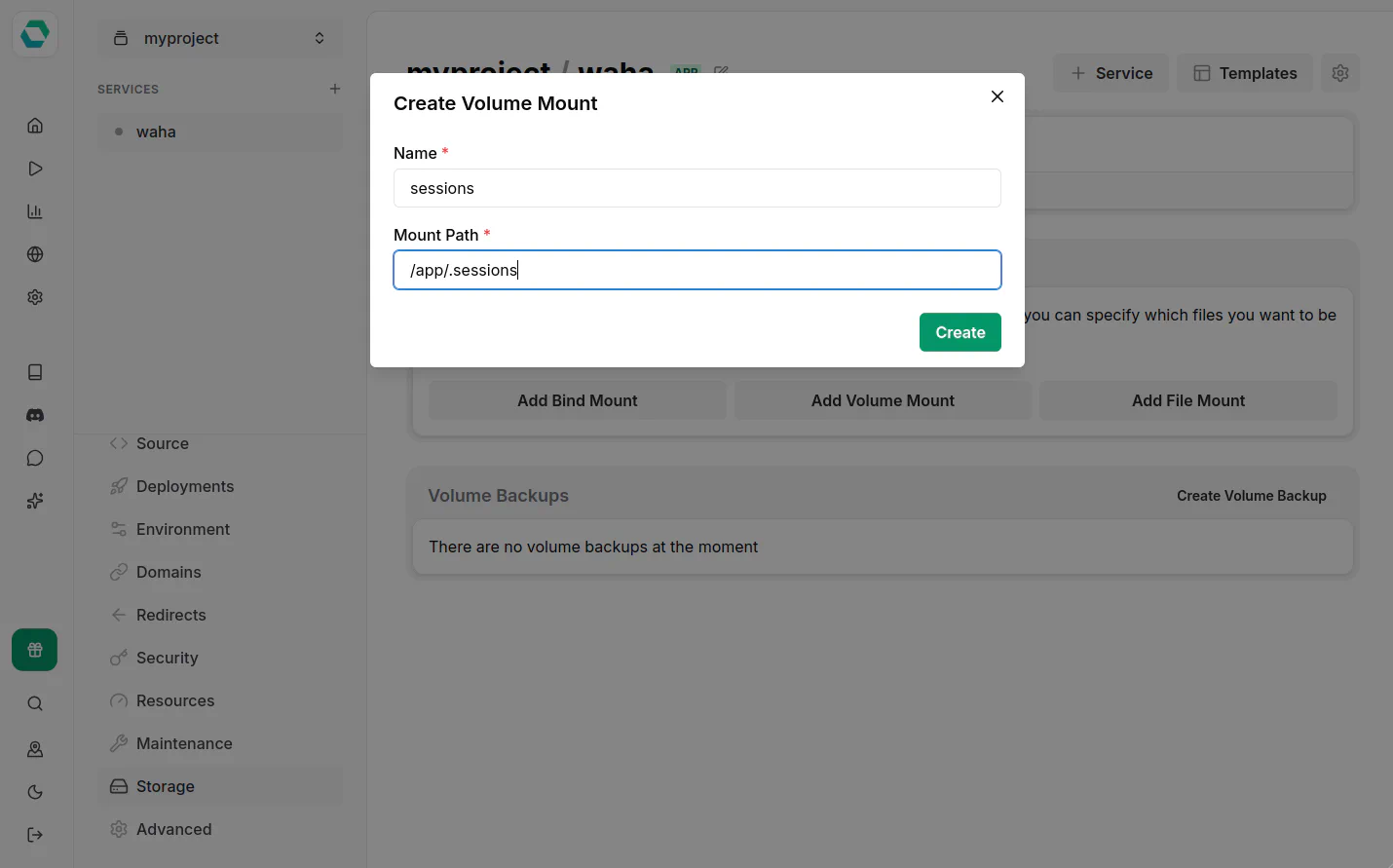
Create two volumes:
- Sessions
- Name:
sessions - Mount path:
/app/.sessions
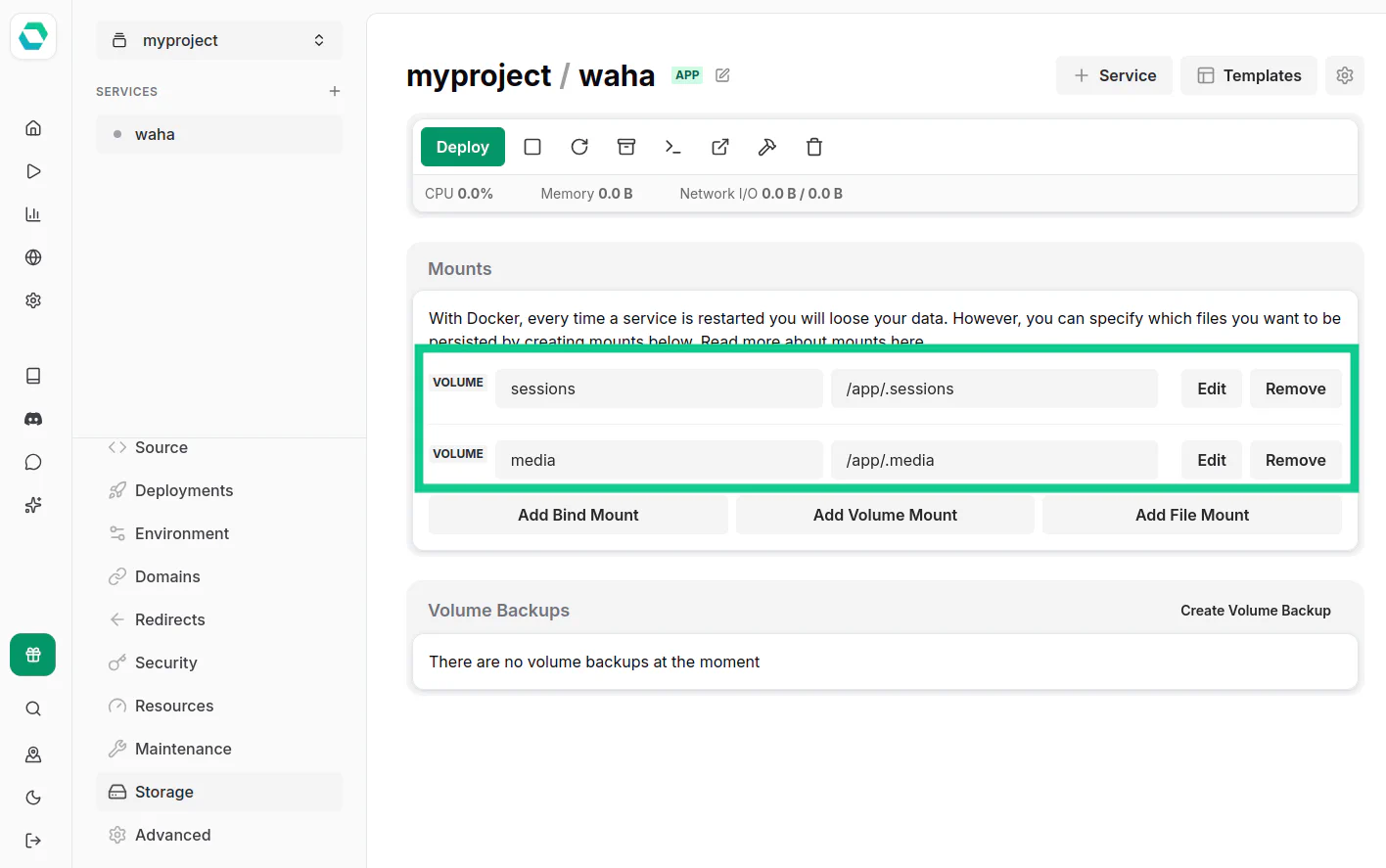
- Media
- Name:
media - Mount path:
/app/.media
This is what volumes should look like in the end:
Host Path
On the server, you can find the files later in these folders:
/etc/easypanel/projects/myproject/waha/volumes/sessions/etc/easypanel/projects/myproject/waha/volumes/media
The pattern is /etc/easypanel/projects/[project]/[service]/volumes/[volume]
App - Advanced
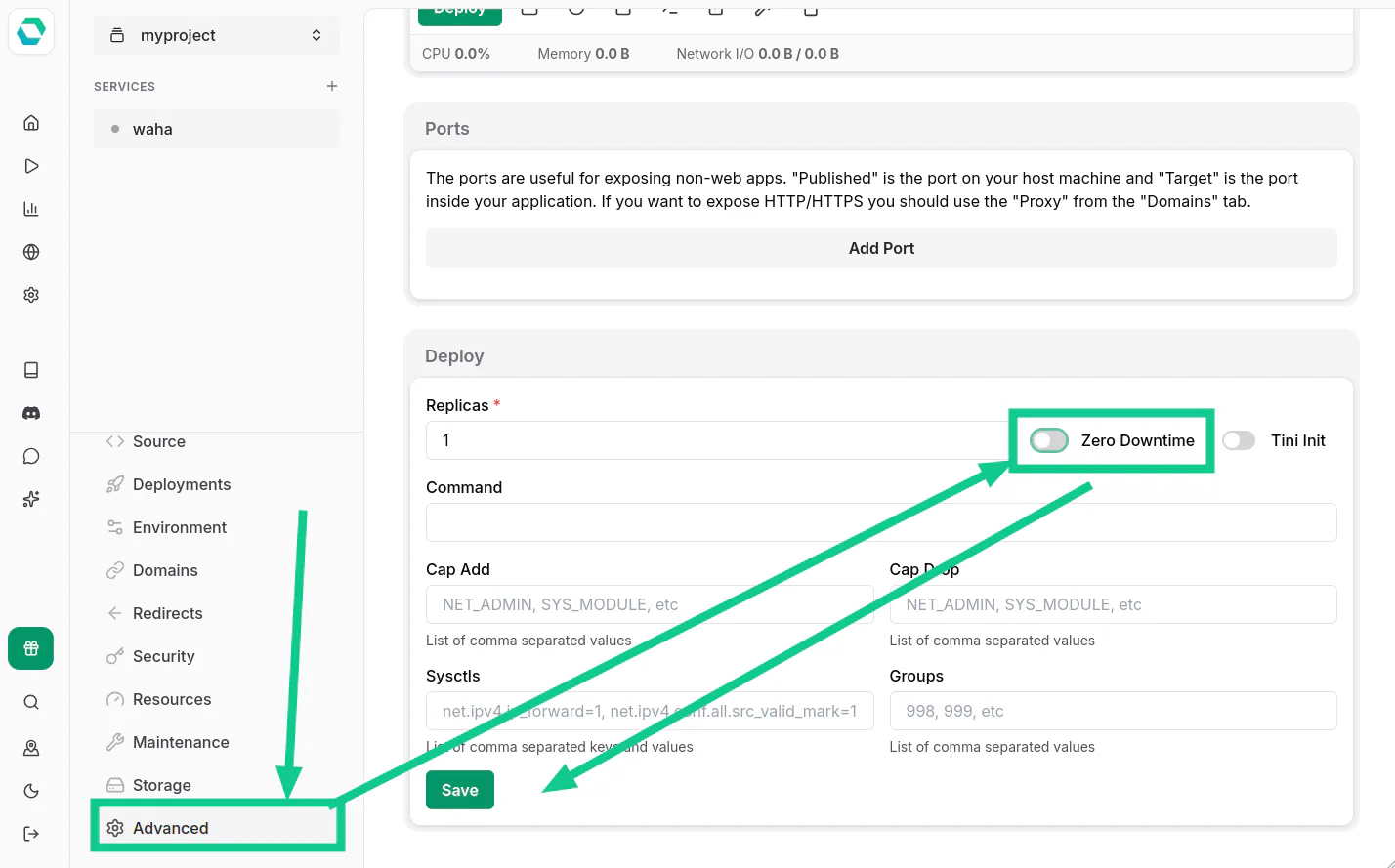
Go to the Advanced tab and disable Zero Downtime deployment.
App - Deploy
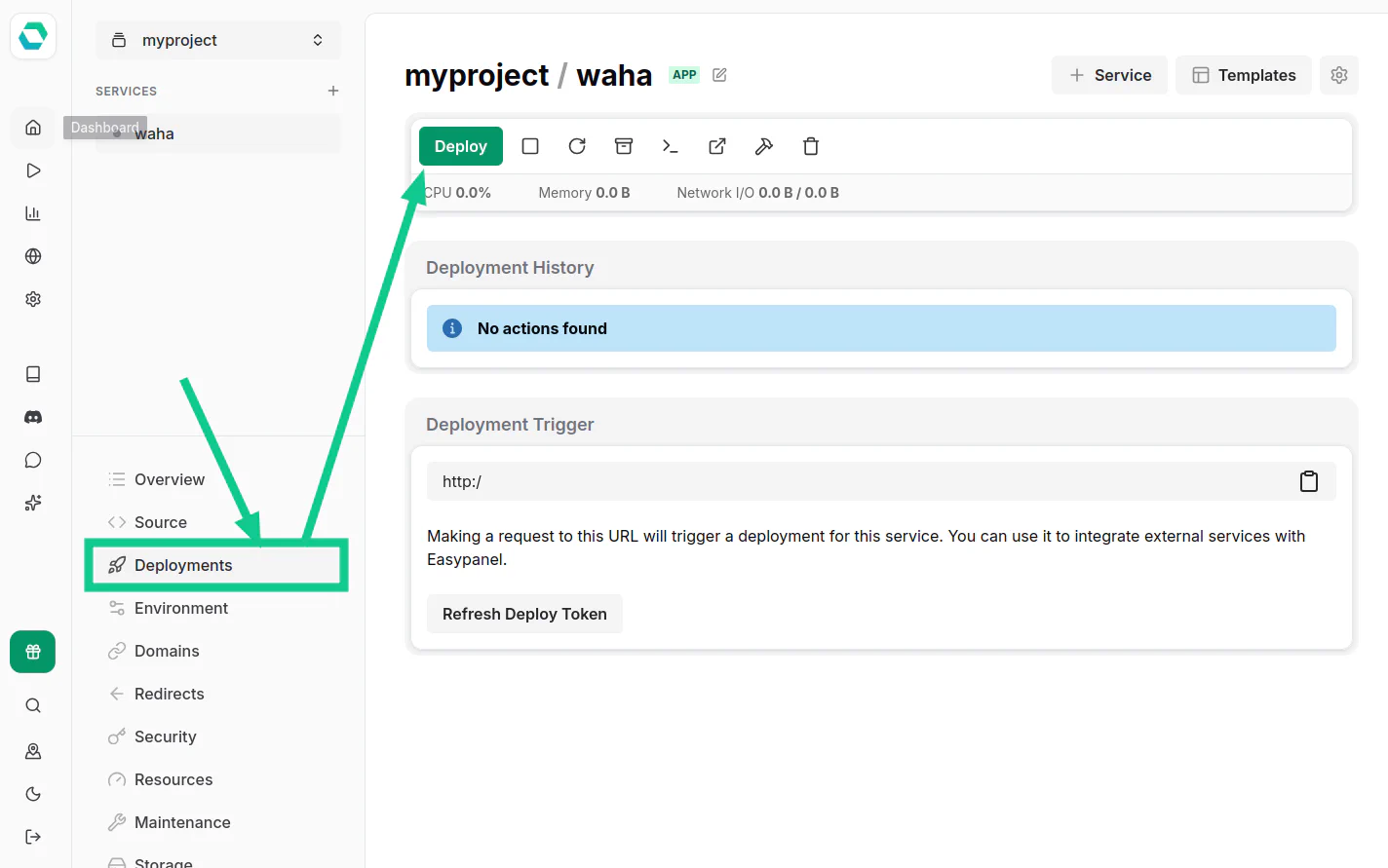
Go to the Deployments tab and click Deploy.
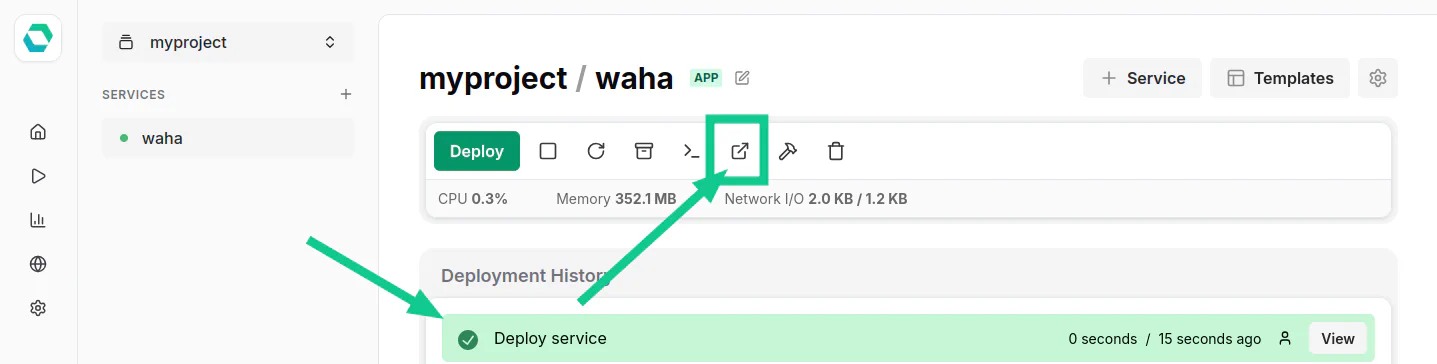
When it finishes, click the Open icon to open WAHA.
Check WAHA
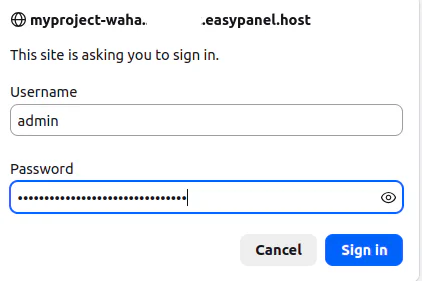
Use admin as Username and your generated WAHA_DASHBOARD_PASSWORD to log in:
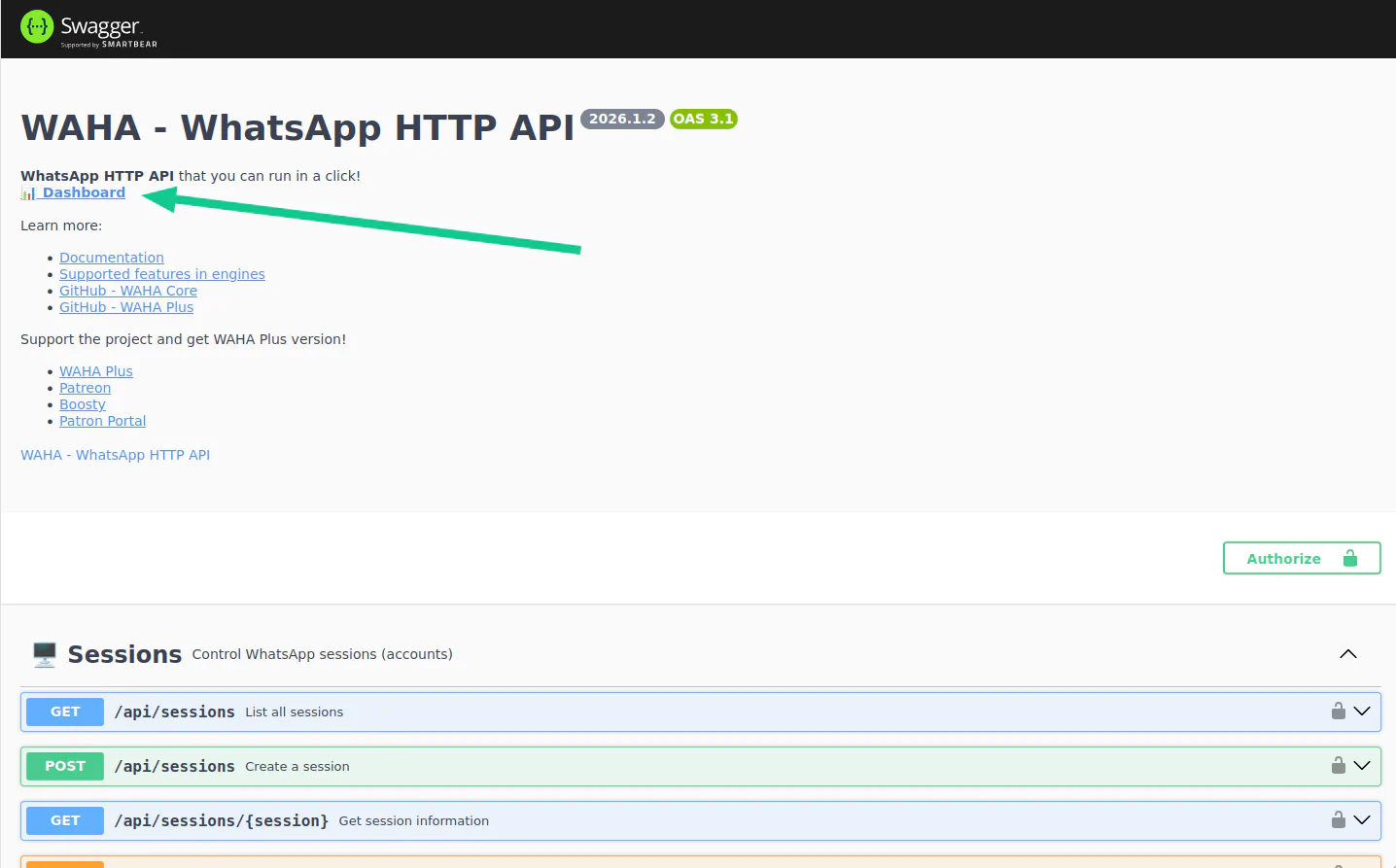
You’ll see Swagger documentation. Now click Dashboard:
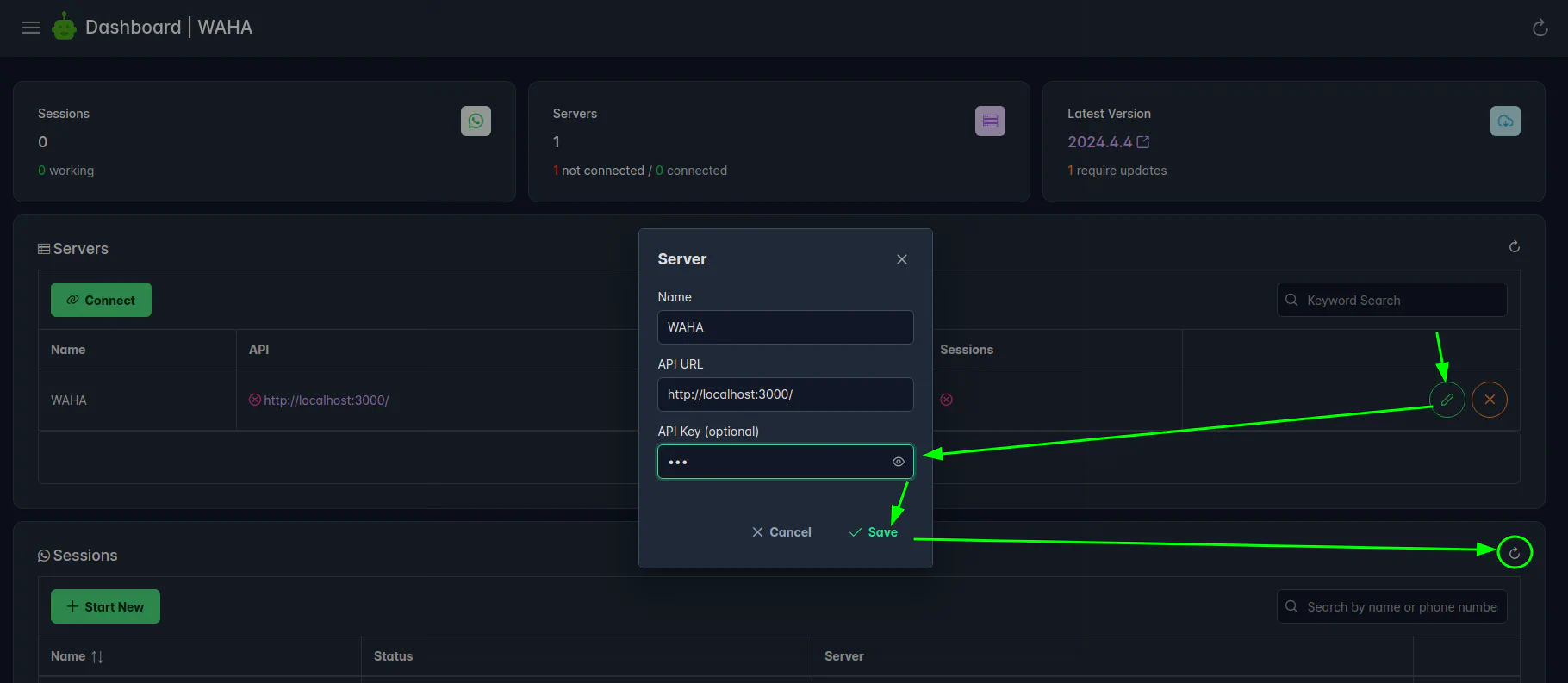
Enter your WAHA_API_KEY to connect:
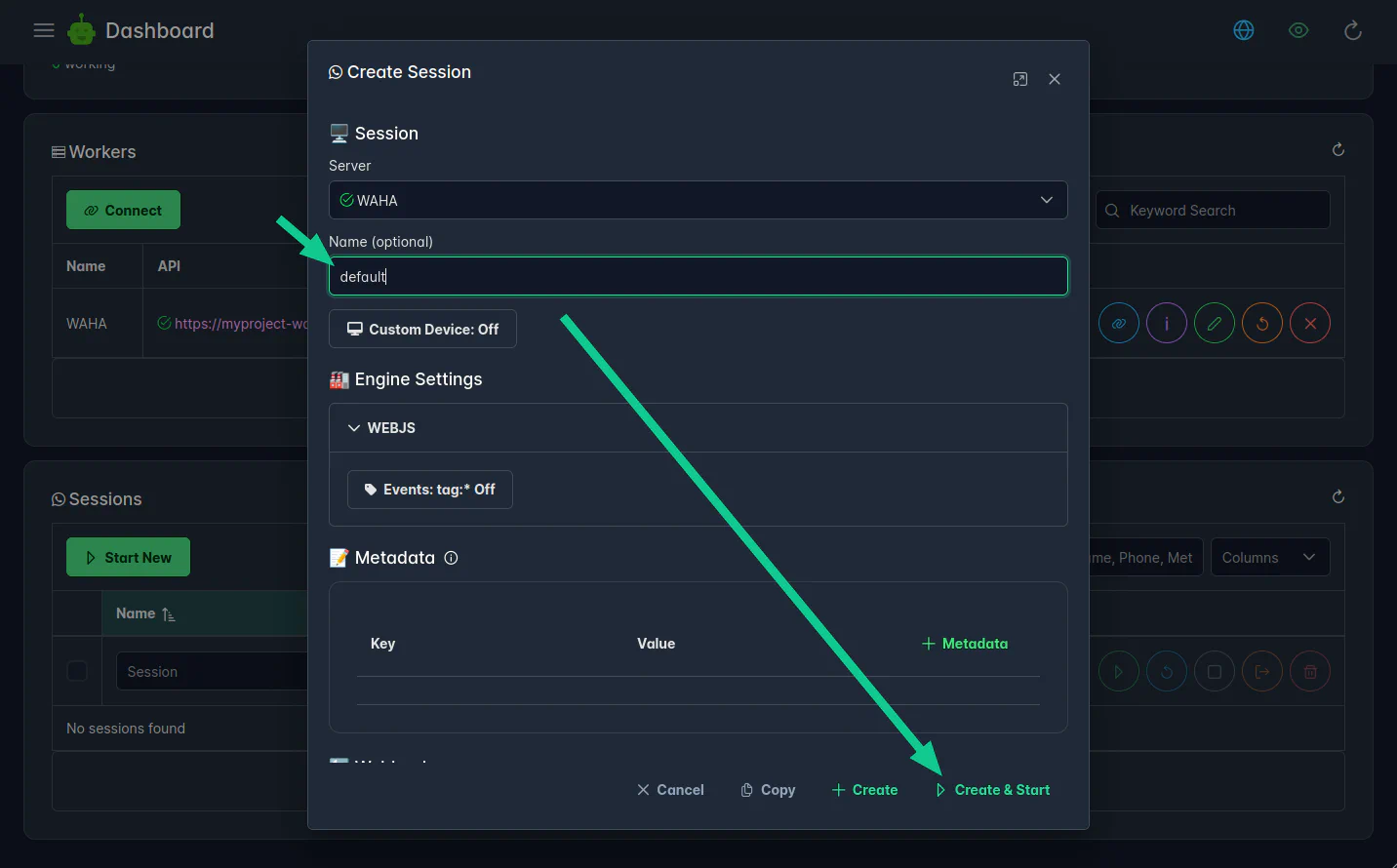
Now you can Create & Start a new session:
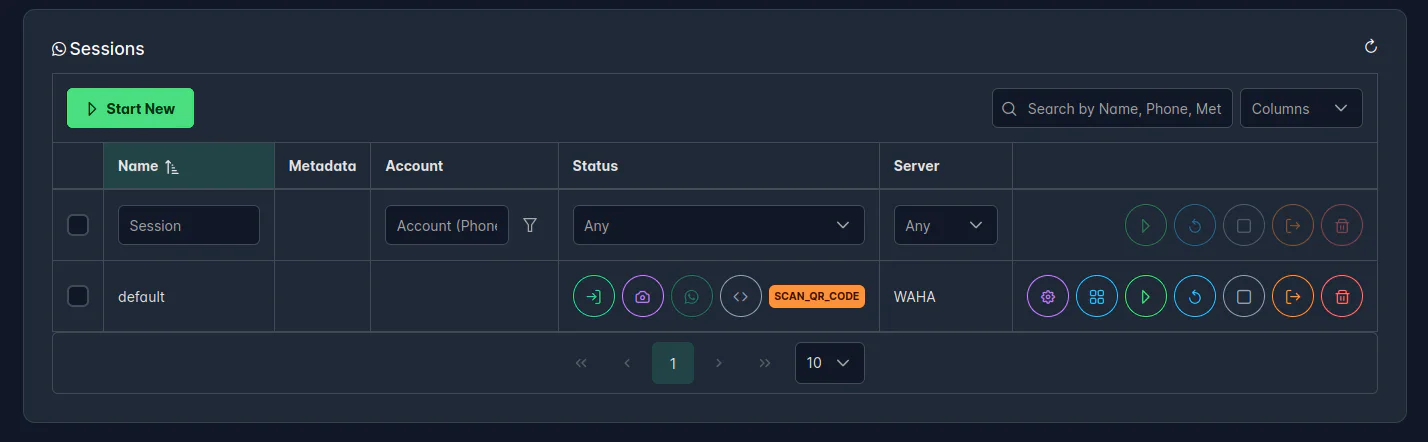
Scan the QR code using your WhatsApp app:
Update
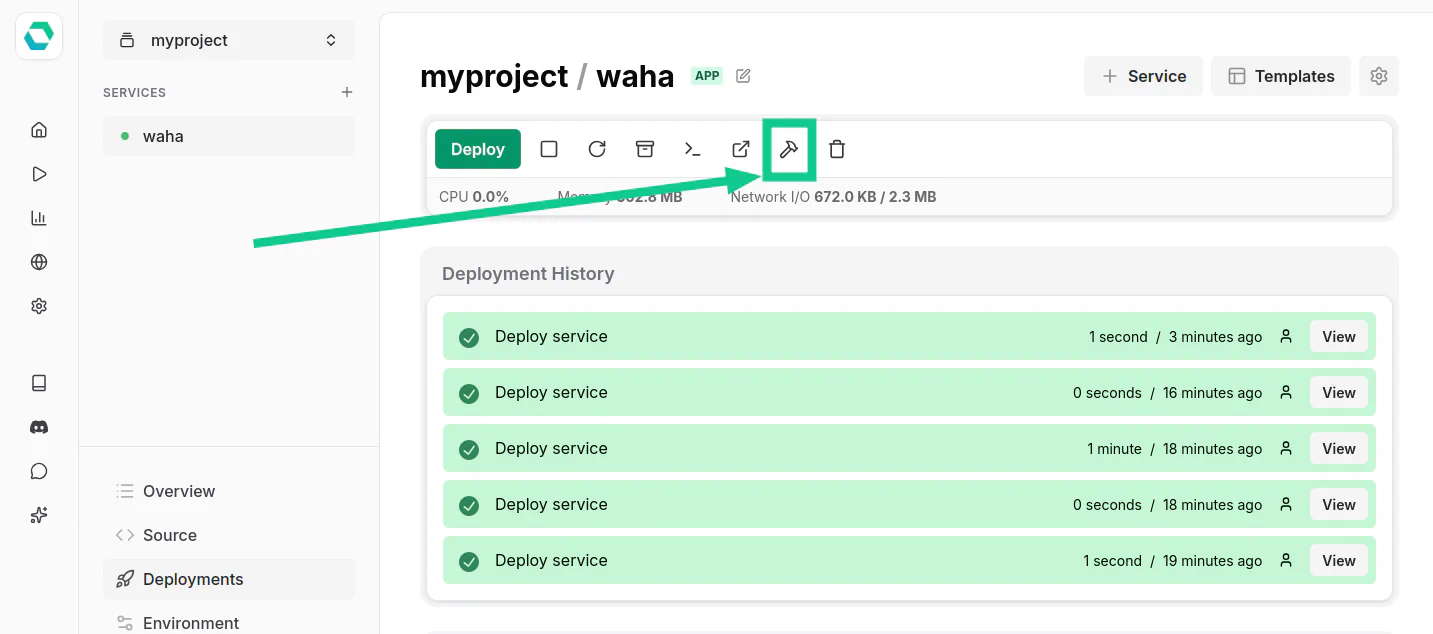
When you want to update the image, trigger a Force Build on the Deployments tab: