How to Handle Passkey
July 9, 2026 in Tips by devlikeapro6 minutes
What is a passkey?
A passkey is a key pair stored by your device instead of a password. The private key never leaves the authenticator - Touch ID, Windows Hello, a security key, your phone - and logging in means signing a random challenge from the server with it.
The browser API behind it is WebAuthn, part of the FIDO2 standard. If you want a deeper read, passkeys.dev is the best starting point.
WhatsApp now asks for one on some accounts when you link a device. The session doesn’t go straight from the QR code
to WORKING - it stops at PASSKEY_REQUIRED and waits for a signed challenge.
Why your backend can’t do it alone
WebAuthn is bound to an origin. The browser only lets you call:
navigator.credentials.get({ publicKey: { rpId: "web.whatsapp.com", ... } })from a page whose origin is web.whatsapp.com. Your app runs somewhere else, so the browser blocks the call.
There’s no header, no flag, no proxy that works around it - that’s the whole point of the standard.
So somebody has to run navigator.credentials.get on the web.whatsapp.com origin. That somebody is a browser
extension.
The extension
We publish one, and it’s the same one the 📊 Dashboard uses:
- Chrome / Edge / Brave - chromewebstore.google.com/detail/ghpdcgnjffaaekflfpcgkgpbafmjldcp
- Firefox - addons.mozilla.org/firefox/addon/whatsapp-browser-extension
The extension is stateless. It knows nothing about your server, your API key, or your session. It takes a WebAuthn
challenge, opens web.whatsapp.com, signs it there, and hands the assertion back. One installed extension works with
every WAHA instance and every integrator - there is nothing to configure.
Fetching the challenge and submitting the assertion stays on your side. That’s what makes this usable in your own branded login flow: your users never see the WAHA dashboard.
It doesn’t mention WAHA
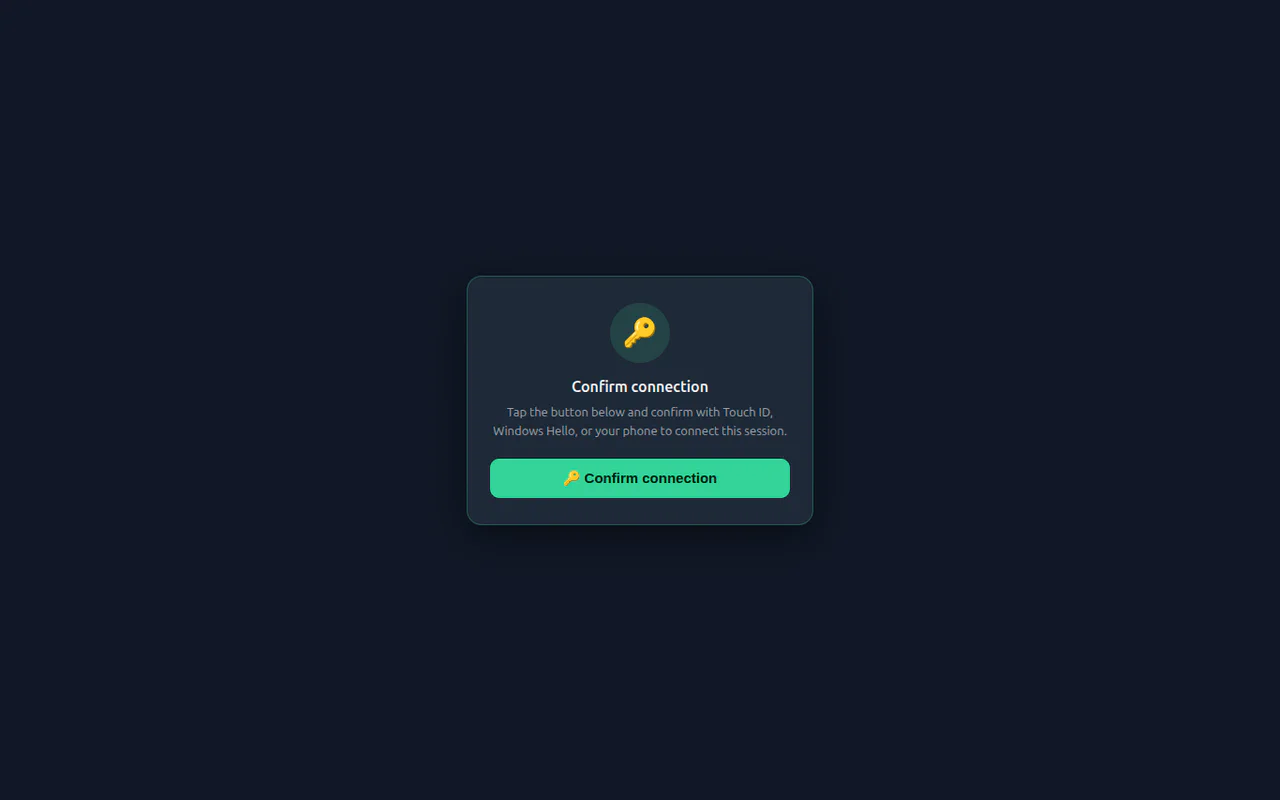
The extension is brand-unaware on purpose. It’s called WhatsApp Browser Extension, its store listing says it
“helps securely complete a WhatsApp session connection”, and the card it shows on web.whatsapp.com just reads
Confirm connection. Nothing in it names WAHA - not the listing, not the icon, not the confirmation card.
So you can point your customers straight at the store link above and it stays your product. Nothing to fork, nothing to rebrand.
The flow
Three steps, and only the middle one involves the extension:
- Ask WAHA for the challenge.
- Ask the extension to sign it.
- Send the signed assertion back to WAHA.
Step 1: Detect the extension
The two builds talk differently. Chrome exposes chrome.runtime.sendMessage to any page via
externally_connectable; Firefox doesn’t support that for web pages, so it bridges through a content script and
window.postMessage. Feature-detect and pick one.
const EXTENSION_ID = "ghpdcgnjffaaekflfpcgkgpbafmjldcp";
const TIMEOUT_MS = 300;

function isFirefox() {
  // Firefox exposes window.chrome too, so !!window.chrome is not a Chromium test
  return /firefox/i.test(navigator.userAgent);
}

function pingChrome() {
  return new Promise((resolve) => {
    if (!window.chrome?.runtime?.sendMessage) return resolve(false);
    const timer = setTimeout(() => resolve(false), TIMEOUT_MS);
    chrome.runtime.sendMessage(EXTENSION_ID, { type: "waha-passkey-ping" }, (resp) => {
      clearTimeout(timer);
      resolve(!chrome.runtime.lastError && resp?.ok === true);
    });
  });
}

function pingFirefox() {
  return callFirefox("waha-passkey-ping", null, TIMEOUT_MS)
    .then(() => true)
    .catch(() => false);
}

const hasExtension = await (isFirefox() ? pingFirefox() : pingChrome());
Ping on page load, not when the session hits PASSKEY_REQUIRED - by then the user is mid-login and installing an
extension costs them time. Show an install banner early if it’s missing.
The Firefox bridge, used by both the ping and the sign call:
// Signing waits for the user to click and touch their authenticator, so give it
// minutes, not seconds. Only the ping should time out fast.
function callFirefox(type, challenge, timeoutMs = 120_000) {
  return new Promise((resolve, reject) => {
    const requestId = crypto.randomUUID();
    const timer = setTimeout(() => {
      cleanup();
      reject(new Error("No response from the extension"));
    }, timeoutMs);

    function onMessage(event) {
      if (event.source !== window) return; // ignore iframes
      const data = event.data;
      if (data?.source !== "waha-passkey-extension" || data.requestId !== requestId) return;
      cleanup();
      if (!data.ok) return reject(new Error(data.error || "Signing failed"));
      resolve(data);
    }

    function cleanup() {
      clearTimeout(timer);
      window.removeEventListener("message", onMessage);
    }

    window.addEventListener("message", onMessage);
    window.postMessage(
      { source: "waha-passkey-page", requestId, type, challenge },
      window.location.origin,
    );
  });
}
Note there’s no extension ID on the Firefox side - postMessage to your own window is picked up by whichever
compatible content script is present.
Step 2: Get the challenge and sign it
Watch the session.status event. When the status is
PASSKEY_REQUIRED, the data field already carries the WebAuthn request options. If you’d rather pull it:
GET /api/{session}/auth/passkey/challenge{
"challenge": "9WVUYm9AsQ...",
"timeout": 60000,
"rpId": "web.whatsapp.com",
"allowCredentials": [
{
"id": "AX8bTgH2...",
"type": "public-key",
"transports": ["internal", "hybrid"]
}
],
"userVerification": "required"
}It returns 422 Unprocessable Entity when no challenge is pending.
Hand that object to the extension as-is:
function signChrome(challenge) {
  return new Promise((resolve, reject) => {
    chrome.runtime.sendMessage(
      EXTENSION_ID,
      { type: "waha-passkey-sign", challenge },
      (resp) => {
        if (chrome.runtime.lastError) return reject(new Error(chrome.runtime.lastError.message));
        if (!resp?.ok) return reject(new Error(resp?.error || "Signing failed"));
        resolve(resp.assertion); // credential.toJSON() - a standard WebAuthn assertion
      },
    );
  });
}

function sign(challenge) {
  return isFirefox()
    ? callFirefox("waha-passkey-sign", challenge).then((data) => data.assertion)
    : signChrome(challenge);
}
The extension opens a web.whatsapp.com tab and shows a confirmation card there. navigator.credentials.get() needs
a user gesture in that tab, so the user clicks the button, touches their authenticator, and the tab closes itself. The
extension resolves with credential.toJSON() - a standard WebAuthn assertion.
That means signing takes as long as the user takes. Don’t put a short timeout on it.
Step 3: Submit the assertion
Post it back, unchanged:
POST /api/{session}/auth/passkey{
"id": "AX8bTgH2...",
"rawId": "AX8bTgH2...",
"type": "public-key",
"response": {
"clientDataJSON": "eyJ0eXBl...",
"authenticatorData": "SZYN5YgO...",
"signature": "MEUCIQD...",
"userHandle": "MTIzNDU2"
}
}All three steps together:
const headers = { "X-Api-Key": apiKey };

// 1. the challenge from WAHA
const challenge = await fetch(`${baseUrl}/api/${session}/auth/passkey/challenge`, { headers })
  .then((r) => r.json());

// 2. the extension signs it on the whatsapp.com origin
const assertion = await sign(challenge);

// 3. back to WAHA
await fetch(`${baseUrl}/api/${session}/auth/passkey`, {
  method: "POST",
  headers: { ...headers, "Content-Type": "application/json" },
  body: JSON.stringify(assertion),
});
Most of the time the session goes straight to WORKING from here.
The confirmation step
Occasionally WhatsApp shows a 4-digit code on the phone and wants the user to confirm it matches. The session moves
to PASSKEY_CONFIRMATION_REQUIRED and the code arrives on the session.status event - or:
GET /api/{session}/auth/passkey/confirmation{
"code": "1234"
}Show it. Once the user says it matches the one on their phone:
POST /api/{session}/auth/passkey/confirmThis step is rare - most pairings skip it.
When the extension isn’t installed
Don’t dead-end the user. The dashboard falls back to a script the operator pastes into the DevTools console on
web.whatsapp.com - it renders a button, calls navigator.credentials.get() behind that click (WebAuthn needs a
user gesture), and copies the assertion to the clipboard. Then they paste it into a textarea and you POST it the
same way.
It’s ugly, but it works on any browser, and it’s the same three steps - only the middle one moves to the console.
Using your own extension
If you publish your own build of the extension, use its ID in EXTENSION_ID in the code above.
For the 📊 Dashboard to pick it up, set:
WAHA_DASHBOARD_PASSKEY_EXTENSION_ID=your-chrome-extension-id
WAHA_DASHBOARD_PASSKEY_EXTENSION_FIREFOX_URL=https://addons.mozilla.org/firefox/addon/your-addon/
Read more
- 🖥️ Sessions - Passkey - the full API reference
- 📊 Dashboard - what we built on top of it
- WebAuthn Guide and passkeys.dev - the standard itself