MCP

WAHA MCP turns your self-hosted WAHA instance into a Model Context Protocol server.
Summarize customer messages for the last 7 days in chat 120363045@g.us
Here’s a summary of customer activity over the last 7 days:
Top topics
- Shipping delays — 23 customers asking about late orders; most affected by carrier delays in the northeast.
- Refund requests — 8 open cases, 3 of which are past the 5-day SLA.
- Product questions — 41 inquiries about sizing and availability; top item: the navy jacket.
Action items
- Follow up with 3 customers whose refunds are overdue
- Post a shipping delay notice to reduce repeat inquiries
- Restock the navy jacket — frequently asked about, currently out of stock
Any MCP-compatible AI agent — Claude, Goose, OpenClaw, and others — can send messages, read chats, and manage contacts through your own infrastructure, with granular permission scopes so you decide exactly what the agent is allowed to do.
WhatsApp + AI agents: understand the risks
Connecting an AI agent to WhatsApp gives it access to private conversations. Researchers have demonstrated tool-poisoning attacks where a malicious MCP server injects hidden instructions that silently redirect your outgoing messages — along with your full chat history — to an attacker’s number.
Read: MCP Horror Stories: The WhatsApp Data Exfiltration Attack (Docker, Nov 2025)
How to reduce the risk with WAHA:
- Create a dedicated MCP app per session — never reuse your admin key
- Grant only the scopes the agent actually needs (e.g.
sendonly, noread) - Revoke or disable the app’s API key when the agent is not in use
- Run WAHA on a private network, not exposed to the internet
MCP is a 🧩 App — you create one MCP app per WhatsApp session. Each app gets its own scoped API key, so you control exactly what the AI agent is allowed to do.
Requirements
New in WAHA? Go over ⚡ Quick Start first.
Enable Apps in your WAHA configuration:
WAHA_APPS_ENABLED=True
WAHA_API_KEY=yoursecretkey
See 🧩 Apps for all available configuration options.
Setup
Run WAHA with Apps enabled and your sessions folder mounted:
docker run -it \
  -e WAHA_APPS_ENABLED=True \
  -e WAHA_API_KEY=yoursecretkey \
  -v ./sessions:/app/.sessions \
  -p 3000:3000 \
  devlikeapro/waha
This is the minimum setup to get started. Check out the 🔧 Install & Update guide on how to configure it for production.
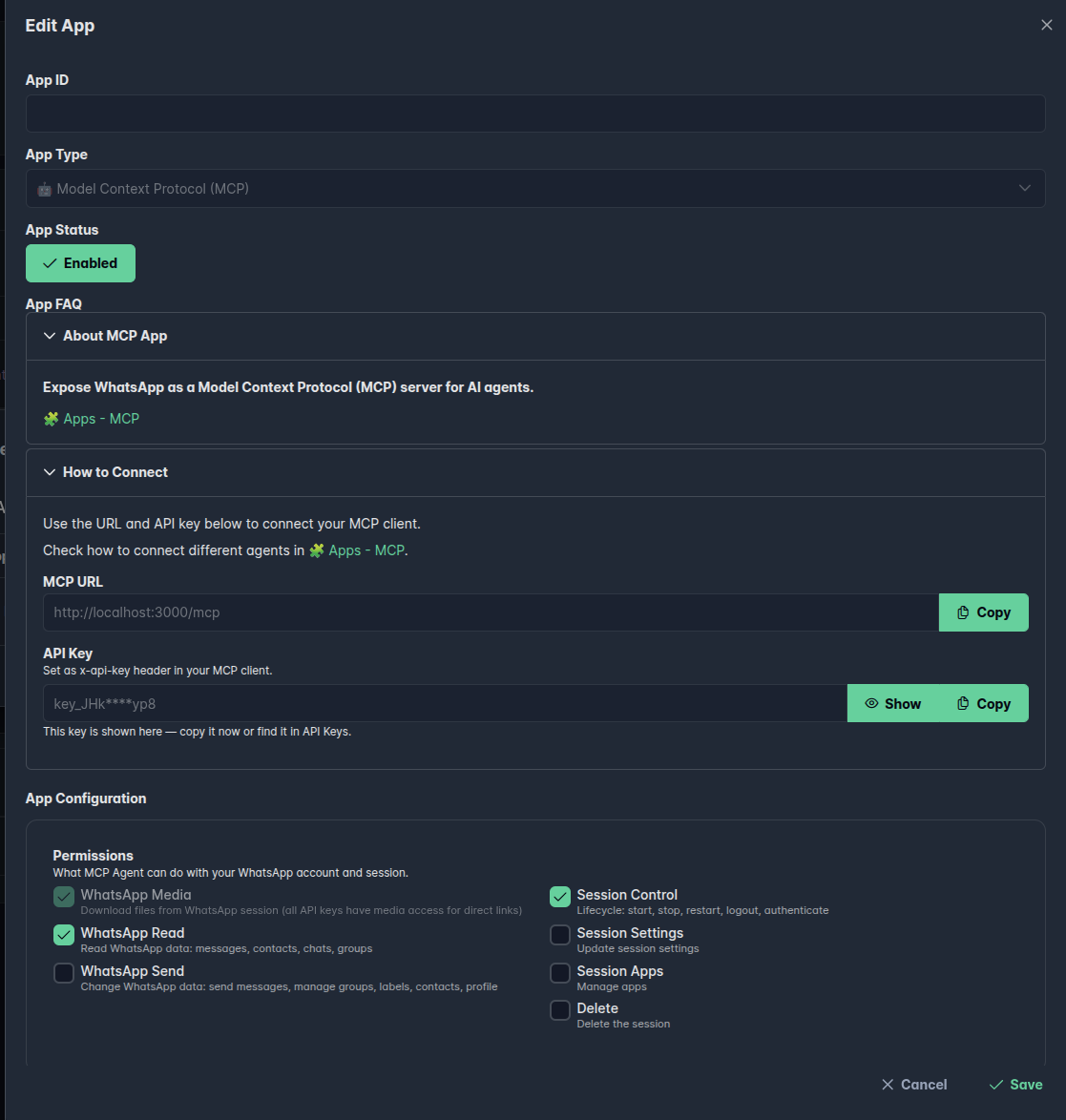
Create an MCP App for the session you want to expose. WAHA automatically generates a scoped API key for that session — copy it from the app details to use in your MCP client.
Dashboard
Open the 📊 Dashboard, navigate to your session’s Apps tab, and create a new MCP app. Set the permissions you want to grant the AI agent.
API
POST /api/apps{
"enabled": true,
"id": "app_mcp_default",
"session": "default",
"app": "mcp",
"config": {
"actions": {
"read": true,
"send": true,
"control": false,
"setting": false,
"app": false,
"delete": false
}
}
}The response includes the generated API key in config.key — save it for your client configuration.
{
  "id": "app_mcp_default",
  "session": "default",
  "app": "mcp",
  "enabled": true,
  "config": {
    "key_id": "key_id_00000000000000000000000000",
    "key": "key_11111111111AAAAAAAAAAAAAAAAAAAAA",
    "actions": {
      "read": true,
      "send": true,
      "control": false,
      "setting": false,
      "app": false,
      "delete": false
    }
  }
}
Connect
The MCP server is available at:
http://localhost:3000/mcpPass your API key as an HTTP header in your MCP client configuration:
X-Api-Key: YOUR_KEYWhich key to use?
MCP App key (recommended) — use the key generated by the MCP App (see Setup above). The app auto-generates a scoped API key, so you control exactly what the AI agent can do.
WAHA_API_KEY — use your WAHA_API_KEY environment variable directly.
It gives the AI agent full access to the API, with no way to limit its permissions.
Claude Code
claude mcp add --transport http whatsapp http://localhost:3000/mcp \
  --header "X-Api-Key: YOUR_KEY"
Claude Desktop
Add to your claude_desktop_config.json:
{
  "mcpServers": {
    "whatsapp": {
      "command": "npx",
      "args": [
        "mcp-remote",
        "http://localhost:3000/mcp",
        "--header",
        "X-Api-Key:YOUR_KEY"
      ]
    }
  }
}
Goose
Run goose configure in your terminal and walk through the prompts:
What would you like to configure?        → Add Extension
What type of extension?                  → Remote Extension (Streamable HTTP)
What would you like to call it?          → whatsapp
Streamable HTTP endpoint URI?            → http://localhost:3000/mcp
Timeout (in secs)?                       → 300
Enter a description                      → WhatsApp MCP
Add custom headers?                      → Yes
Header name:                             → X-Api-Key
Header value:                            → YOUR_KEY
Add another header?                      → No
In the desktop app the same flow lives under Settings → Extensions → Add custom extension.
Goose stores extensions in ~/.config/goose/config.yaml so you can also edit that directly.
OpenClaw
Add your server under mcp.servers in openclaw.json
(typically ~/.openclaw/openclaw.json):
{
  "mcp": {
    "servers": {
      "whatsapp": {
        "url": "http://localhost:3000/mcp",
        "transport": "streamable-http",
        "connectionTimeoutMs": 10000,
        "headers": {
          "X-Api-Key": "YOUR_KEY"
        }
      }
    }
  }
}
Use transport: "streamable-http" (OpenClaw’s canonical spelling).
You can also manage entries with openclaw mcp set / openclaw mcp list.
If the server doesn’t appear, run openclaw gateway restart.
Permissions
The actions field controls what the AI agent can do within the session.
Set only the scopes you actually need — the key principle is least privilege.
Media files are accessible with any key, regardless of scopes.
All session keys can download media from /api/files/ — see Use ?x-api-key query parameter for embedding media in HTML.
| Scope | Description |
|---|---|
read | Read chats, messages, contacts, groups, etc. |
send | Send messages, manage groups, labels, channels, contacts, profile |
control | Start, stop, restart, logout, authenticate the session |
setting | Update session settings |
app | Manage apps |
delete | Delete the session |
A typical read + send only setup (good for a messaging assistant):
"actions": {
  "read": true,
  "send": true,
  "control": false,
  "setting": false,
  "app": false,
  "delete": false
}
Read more about scopes in 🔒 Session Key Scopes.
Examples
Summarize customer messages for the last 7 days in chat 120363045@g.us
Here’s a summary of customer activity over the last 7 days:
Top topics
- Shipping delays — 23 customers asking about late orders; most affected by carrier delays in the northeast.
- Refund requests — 8 open cases, 3 of which are past the 5-day SLA.
- Product questions — 41 inquiries about sizing and availability; top item: the navy jacket.
Action items
- Follow up with 3 customers whose refunds are overdue
- Post a shipping delay notice to reduce repeat inquiries
- Restock the navy jacket — frequently asked about, currently out of stock
Download files for the last 7 days in chat 120363045@g.us
Downloaded 28 files from the last 7 days:
- 14 images —
.jpg,.png - 9 documents —
.pdf,.docx - 5 videos —
.mp4
Delete spam messages for the last 7 days in chat 120363045@g.us
Deleted 14 spam messages matching these patterns:
- Repeated promotional links from unknown numbers
- “Forward this to 10 people” chain messages
- Identical messages sent more than 3 times in a row
187 messages were scanned — the remaining 173 were left untouched.